Connect your assistant or editor
Add the AffiliateRail MCP server to Claude, ChatGPT, Claude Code, Codex, Cursor or VS Code, then ask it to set up your program.
Run your affiliate program from your assistant instead of the dashboard: who your top partners are this month, which commissions and applications are waiting, who has gone quiet, how revenue is trending, why a payout failed. Allow it to write as well and it can decide applications, resolve risk flags, manage the resources shelf and send the campaigns you built. Or hand it the whole setup: ask your agent to "set up my affiliate program" and it works through the steps with you, from your commission rate to the tracking tag in your code.
Server URL: https://mcp.affiliaterail.com/mcp
Requires: an AffiliateRail account. API and MCP access is part of every plan, the free trial included.
To set up your program: connect, sign in and press Allow, then say "set up my affiliate program".
Your agent calls setup_guide and works through the steps with you (how it goes).
How the connection is secured
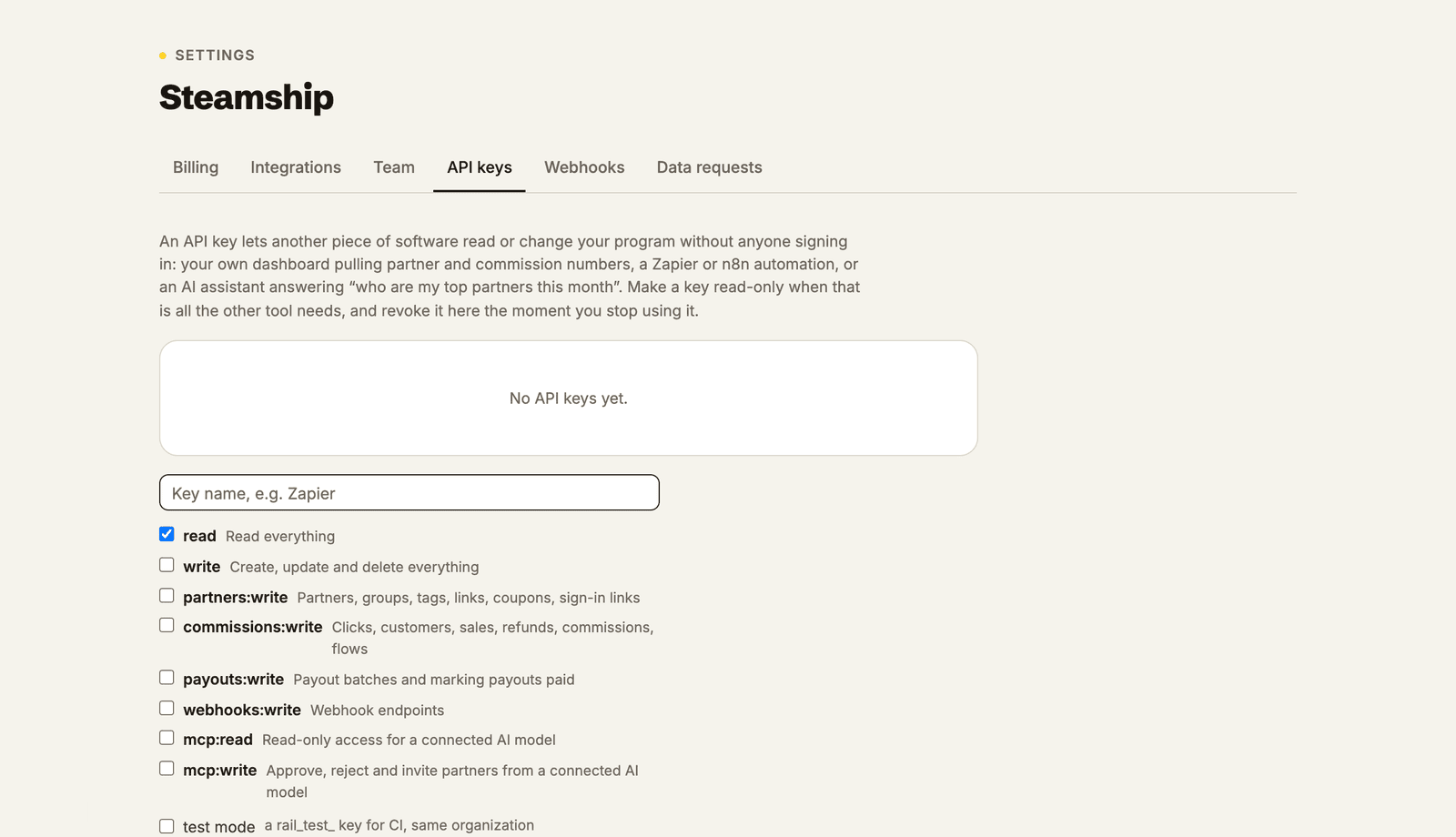
You never paste a key into an assistant. When you press Connect, AffiliateRail opens in your browser, you sign in the way you always do, and you press Allow. That's the whole flow: the connection can read your program, set it up and act in the review queues, and the screen says exactly what it can never touch. Press Deny and the assistant is told so. If you want an assistant that can only read, create a read-scoped API key under Settings, API keys and use that instead.
What that gives you:
- Nothing to copy and nothing to lose. The credential is made on our side and the assistant receives a short-lived token, one hour, refreshed on its own. You never see a key, so you can't leave one in a chat window.
- One press covers the working surface. A connection reads your program and acts in the places you already work: program settings, branding, commission rules, groups, partner links and coupons, commission and application decisions, partner invites, risk flags, the resources shelf and campaign sends. Every change shows you a confirmation card first. The Allow screen lists what it can never touch, and a read-scoped API key from Settings is the way to connect an assistant that may only read.
- One connection per assistant. Each one is listed under Settings, API keys, Connected agents, by the app that asked, with the date you allowed it and when it was last used. Connecting the same assistant again reuses that one instead of leaving another behind.
- Disconnecting is one click. Press Disconnect next to it and that assistant stops working on its next request. Every other connection carries on.
If you belong to more than one organization, the Allow screen asks which one you're connecting. The assistant sees that one and nothing else.
The Allow screen also shows who is asking. Address checked means the assistant is known by its own web address and we fetched its details from there, so the name can't be faked. This agent named itself means it picked its own name. That's normal. Press Allow only if you pressed Connect a moment ago.
1. Connect from Claude
- Go to claude.ai. Open Settings, Connectors, Add custom connector.
- Name:
AffiliateRail. Server URL:https://mcp.affiliaterail.com/mcp. Leave the OAuth client fields empty; the server registers the connector itself. Click Add. - Click Connect. AffiliateRail opens in a new tab. Sign in if you aren't already and press Allow. You're sent back to Claude, connected.
- Under the connector, set the permissions for each tool. Our recommendation: leave the read
tools on Always allow and keep every write tool (
approve_commission,send_campaign,reject_applicationand the rest) on Needs approval, so you confirm every change before it happens. - In a new chat, make sure the AffiliateRail toggle is on under the tools menu, then ask.
Claude Desktop uses the same URL.
2. Connect from ChatGPT
- Go to chatgpt.com. Open Settings, Apps, Advanced settings and switch Developer mode on.
- Click Create app. Name:
AffiliateRail. MCP server URL:https://mcp.affiliaterail.com/mcp. Authentication: OAuth. Tick the acknowledgement and click Create. - ChatGPT opens AffiliateRail: sign in and press Allow.
- In a chat, open the tools menu, enable AffiliateRail, and ask.
ChatGPT asks for confirmation before running a tool that changes data. Keep that on.
3. Connect from Claude Code or Codex
In Claude Code, run this in your project, then type /mcp to sign in. It opens the same Allow
screen:
claude mcp add --transport http affiliaterail https://mcp.affiliaterail.com/mcpIn Codex, add the server, then log in. The second command opens the Allow screen in your browser:
codex mcp add affiliaterail --url https://mcp.affiliaterail.com/mcp
codex mcp login affiliaterail
4. Add to Cursor or VS Code
One click each. Both open the editor, add the server, and send you to the same Allow screen the first time it's used.
Any other client that speaks MCP: add https://mcp.affiliaterail.com/mcp as a remote (HTTP)
server. If it supports sign-in, that's all it needs.
Set up your program with an agent
A new account comes with a program, a 20% commission rule and some demo data. From there, open
your agent in the repository for your product and ask it to "set up my affiliate program". It
calls setup_guide, which returns the seven steps on your Getting started page, plus the optional
custom domain, with the tool for each one. It works through them with you:
| Step | What the agent does |
|---|---|
| Commission rule | Reads it with rules_summary, changes it with update_commission_rule once you say what to pay |
| Payment processor | Hands you the Stripe link from payment_connection_status to open yourself. Paddle is connected in the dashboard |
| Tracking tag | Writes the tag from get_install_instructions into your code, then proves it with check_install |
| Your own portal | Invites you with invite_partner, so you see what partners see |
| Test sale | Tells you how to pay once in Stripe test mode or Paddle sandbox through your own link; it needs a real browser |
| First partner | Invites the person you name |
| Branding | Sets your logo and colours with update_branding |
| Custom domain (optional) | Points you to the dashboard: it needs a DNS record only you can add |
It also offers to clear the demo data with remove_sample_data before real partners join, and
looks things up with search_docs rather than guessing.
What you can ask
Setting up:
| Ask | Tool behind it |
|---|---|
| "Set up my affiliate program" | setup_guide() |
| "Is Stripe connected?" | payment_connection_status() |
| "Add the tracking tag to my site" | get_install_instructions(), then check_install(url) |
| "How does attribution work with Paddle?" | search_docs(query) |
| "Pay partners 30% on every payment" | create_commission_rule(...) or update_commission_rule(rule_id, ...) |
| "Pause the old launch rule" | set_rule_status(rule_id, status) |
| "Set a 60-day cookie and net 30 payouts" | update_program_settings(...) |
| "Brand my portal with my logo" | update_branding(logo_url, ...) |
| "Make an Agencies group" | create_group(name), update_group(group, ...) |
| "Give @jimi a link to my pricing page" | create_partner_link(partner_handle, destination_url) |
| "Credit @jimi for the code JIMI20" | create_coupon(partner_handle, code) |
| "Clear out the demo data" | remove_sample_data() |
Every tool, with its inputs, is in the tool reference.
Reading your program:
| Ask | Tool behind it |
|---|---|
| "Who are my top partners this quarter?" | top_partners(period) |
| "What commissions are waiting for approval over $50?" | pending_commissions(min_amount) |
| "Which partners have gone quiet in the last 60 days?" | idle_partners(days) |
| "Show me affiliate revenue by month this year" | revenue_by_period(granularity) |
| "Tell me everything about @jimi" | partner_detail(handle_or_email) |
| "Did last month's payouts go through?" | payout_status(period) |
| "What commission rules do I have?" | rules_summary() |
| "What referrals came in today?" | recent_referrals(limit) |
| "Find the partner whose email starts jane@" | list_partners(query, status) |
| "Which customers did @jimi bring in?" | list_customers(query, status) |
| "Show rejected commissions this month" | list_commissions(status, partner_handle) |
| "Who applied, and is anything held?" | list_applications() |
| "Revenue by product this quarter" | report(dimension, from, to) |
| "Any open fraud flags?" | list_risk_flags(status) |
| "What is on the resources shelf?" | list_resources() |
| "Is the newsletter still sending?" | messaging_status() |
| "What fields does a commission have?" | schema_introspect(object) |
Acting in the review queues:
| Ask | Tool behind it |
|---|---|
| "Approve commission com_…" | approve_commission(id) |
| "Reject com_… because it was a self-referral" | reject_commission(id, reason) |
| "Invite jane@example.com to the Agencies group" | invite_partner(email, group) |
| "Approve that application" | approve_application(application_id) |
| "Decline it, audience is not a fit" | reject_application(application_id, reason) |
| "Close the fraud flag, it was one bulk refund" | resolve_risk_flag(risk_flag_id, note) |
| "Add the brand kit link to resources" | create_resource_link(title, url) |
| "Unpublish the old one-pager" | update_resource(resource_id, published) |
| "Delete the outdated banner" | delete_resource(resource_id) |
| "Send the August campaign now" | send_campaign(campaign_id) |
| "Pause the welcome sequence" | pause_sequence(sequence_id) |
Before any of these applies, the server answers the first call with a confirmation card: ids resolved to the names you recognise, amounts formatted from the stored values, and a field-level list of exactly what would change ("Approve com_x93: $42.00 USD to Maria Alvarez, matured 28 Aug"). The assistant shows you the card and repeats the call as confirmed only once you agree; nothing changes until it does.
That's enforced, not left to the assistant. Each card carries a token, and the confirmed call has to send it back with the same details. A confirm without it is refused and the card comes back. The card is also a rehearsal: the change is tried and rolled back, so anything it would be refused for (your plan's limit, a value the settings page wouldn't take) shows on the card before you're asked.
Every change made through an assistant is written to the audit log as mcp, with the connection
that made it, and shows in the object's history like any other change. What isn't here, on
purpose, whatever you allowed: executing or approving payout batches, payout connections and bank
details, API keys and webhook secrets, billing, who is on your team and their role, and deleting partners or customers.
Those stay in the dashboard. An assistant holding your token can't move money, because
AffiliateRail never holds any: payouts run on your own PayPal or Wise account, and that account
isn't on this surface.
Two resources are also exposed: program://current (your program's settings, plan and counts,
and the list of programs if you have more than one) and catalog://events (the webhook event
catalogue, the same one as docs/webhooks.md).
Amounts come back as integer minor units (cents, pence) with the currency and a formatted string. The assistant is told to quote the formatted one.
Finding affiliates with Finder
Finder is the part of AffiliateRail that finds new affiliates. It's on the same connection, so the same agent can search, shortlist and look up addresses for you:
| Ask | Tool behind it |
|---|---|
| "Find YouTubers who review email tools" | finder_search(type, seed) |
| "Who are my best new matches?" | finder_list(view) |
| "Save the top three" | finder_save(ids) |
| "Get me their email" | finder_reveal(id) |
| "What did we offer them? Offer 30% instead" | finder_deal(id, terms) |
A search costs one search credit and an address costs one email credit. Before either is spent, the agent shows you a card with the cost and what you have left, and waits for your yes. An address that isn't found is refunded. Saving is free. The agent can offer new terms on a deal, but it can't mark them agreed or make anyone a partner, and no Finder tool drafts or sends a message. Those stay with you, in Finder.
The skill: better answers, connected or not
The AffiliateRail skill (download and install it here) teaches Claude how to run an affiliate program: commission design, program terms, recruiting, fraud, reading the numbers, and the tax-form and payout mechanics. It has two modes and picks one itself: without a connection it answers as a competent advisor; with the MCP tools present it composes them into live answers about your program, under one hard rule: it never states a number about your program that didn't come from a tool call. You don't need the skill to use the MCP server, or the server to use the skill.
More than one program
A connection belongs to the organization you chose on the Allow screen, so it covers every program
on that organization. Tools default to your first program; say which one you mean ("in the Acme
Partners program") and the assistant passes its program_id, which it reads from
program://current.
Disconnecting
Open Settings, API keys, Connected agents and press Disconnect next to the assistant. That one connection stops working on its next request and no other is touched. Clients that tell the server when you remove a connector there end it here too; if you're not sure yours does, press Disconnect as well.
Other ways to connect
Use these only if signing in doesn't work for your client.
Send the key yourself. Any client that can set a header (Claude Code, Cursor, mcp-remote)
can skip the browser entirely: make a key under Settings, API keys, pick the scopes you want,
and send Authorization: Bearer rail_live_…. Same scopes, same revocation, and it's the fastest
route from a terminal.
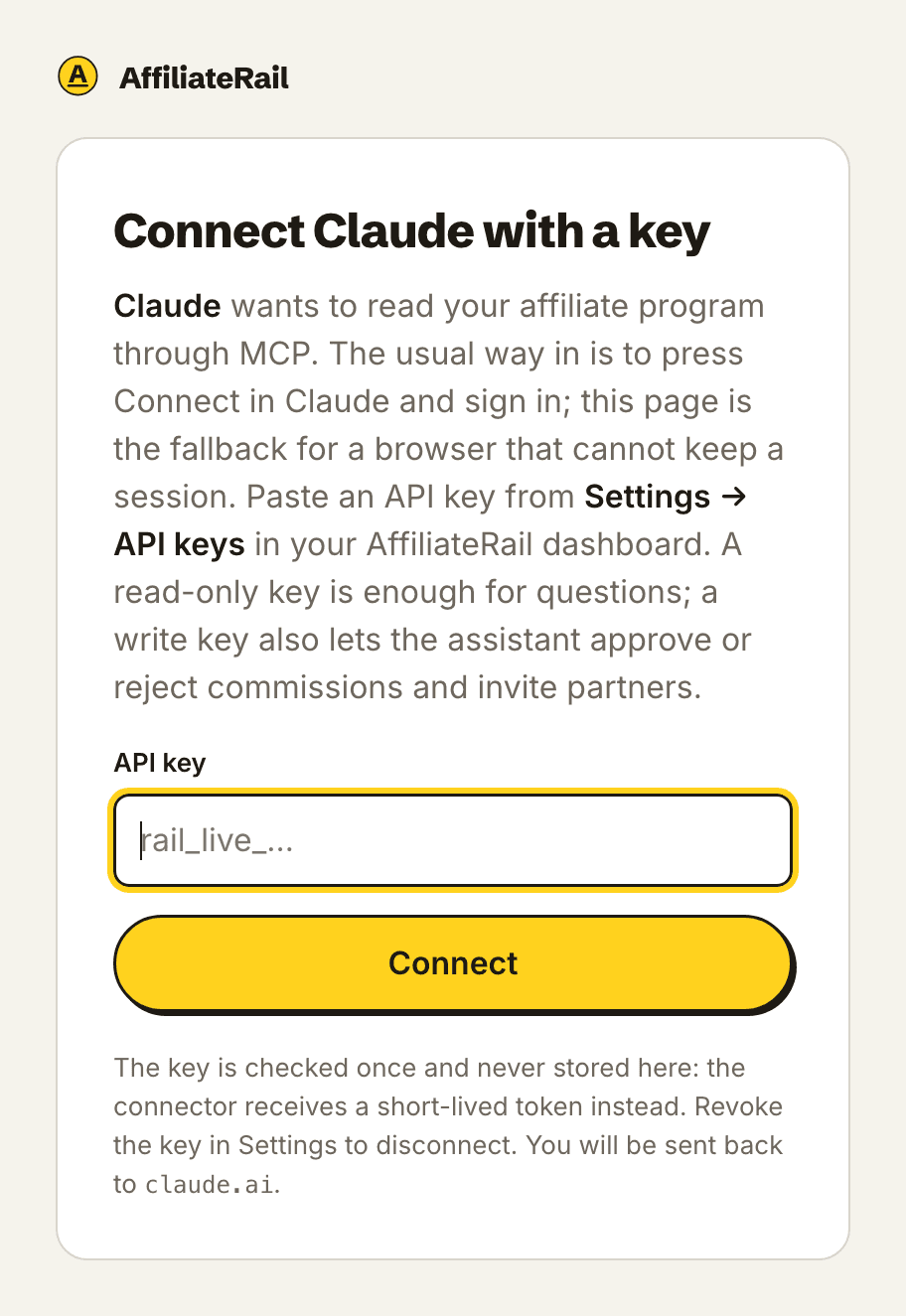
Paste a key into the browser. If the Allow screen can't sign you in, for instance in an
embedded browser that won't keep a session, open https://mcp.affiliaterail.com/oauth/authorize/key
with the same connection parameters and paste a key there instead. It reaches the same place. Use
it when the front door won't open, not as a habit.
For developers
- Endpoint:
POST https://mcp.affiliaterail.com/mcp, streamable HTTP, stateless, JSON responses. - Discovery:
/.well-known/oauth-protected-resourceand/.well-known/oauth-authorization-server. - OAuth 2.1, public clients, PKCE S256 required,
authorization_codeandrefresh_tokengrants. Access tokens last one hour, refresh tokens thirty days; both are bound to the credential behind the connection and die with it. - Client registration, either way: a Client ID Metadata Document (send an
httpsURL asclient_id; the document must name itself by that URL and list its redirect URIs, and the Allow screen shows its hostname), or dynamic registration at/oauth/register. Redirects are https, or loopback (localhost,127.0.0.1,[::1]); a loopback redirect registered without a port accepts any port. - Every redirect back to the client carries
iss(RFC 9207). POST /oauth/revoke(RFC 7009) ends a connection: revoking its access or refresh token revokes the credential behind it. Always answers 200./oauth/authorizesends the browser to the merchant dashboard to ask the question and takes the answer back. Every endpoint in the metadata stays onmcp.affiliaterail.com, so a client never sees that trip and never has to follow an issuer across origins.resource(RFC 8707) is honoured: sendhttps://mcp.affiliaterail.com/mcpand the tokens you get back are bound to it and refused anywhere else. Sending none is fine and binds nothing.- Scopes:
mcp:read,mcp:write. Allow mints exactly these; a key you made yourself with the broaderread/writescopes is accepted too. - A 401 carries
WWW-Authenticate: Bearer … scope="mcp:read mcp:write", resource_metadata="…"(RFC 9728), with noerrorwhen no token was sent (RFC 6750), so any MCP client that implements the authorization spec finds the flow on its own. - Write tools take
confirmandpreview_token. The unconfirmed call returns the card and a token bound to the tool, its arguments, the program and the connection, valid fifteen minutes; the confirmed call needs it.